
Give each case a clear next action.
Assign ownership, set a deadline and preserve the follow-up history.
01Find and assign work
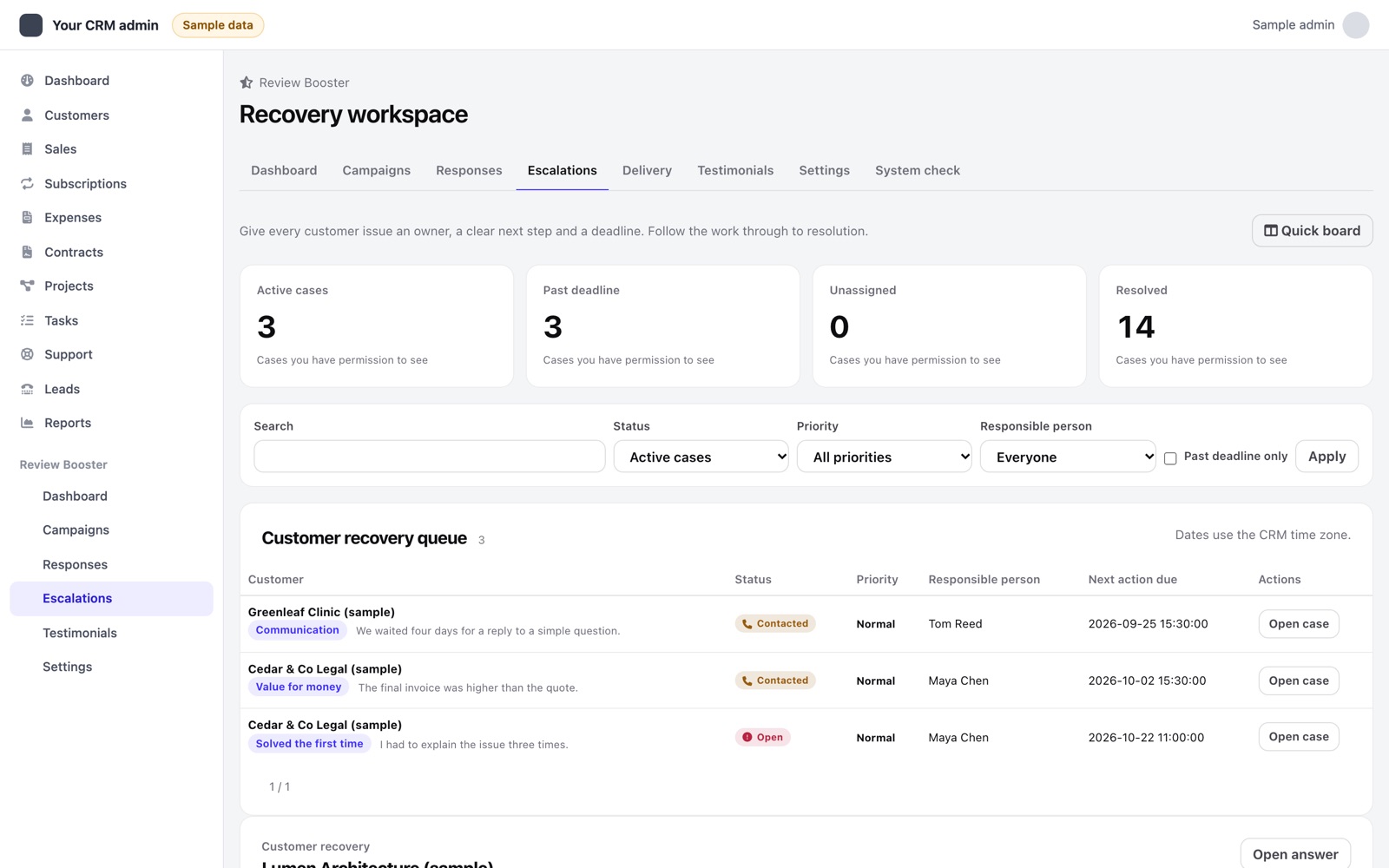
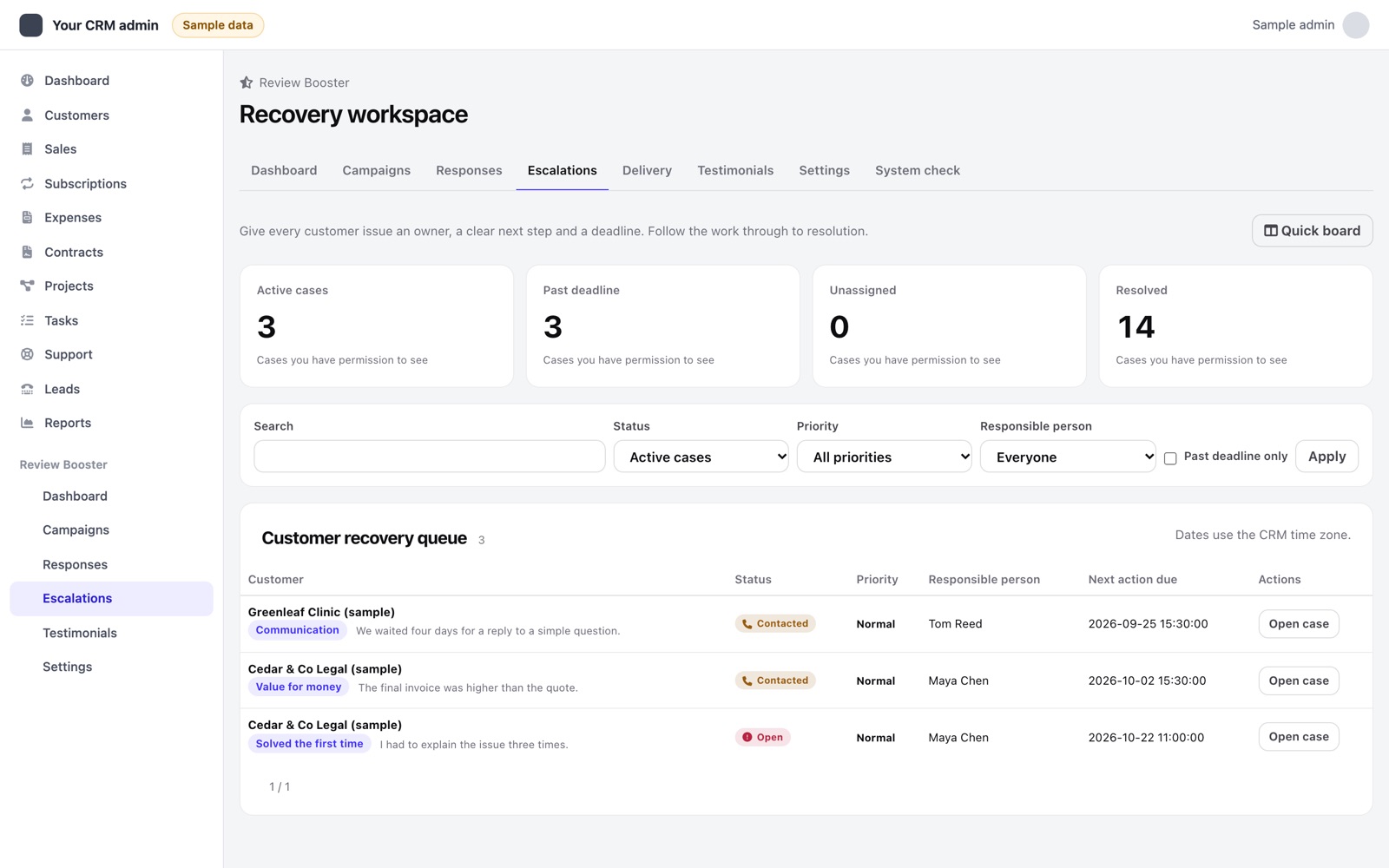
Open Recovery from the Review Booster menu. Filter by text, status, owner, priority or overdue state. Server-side pages keep the queue usable as history grows. View-own staff see cases belonging to their permitted customers; assigning a case owner does not grant access to another customer's records.
Open a case, assign the responsible staff member, choose low, normal, high or urgent priority, and set the optional next-action deadline. Record a private note and save. The quick board remains available for status changes.
02Contact, resolve and reopen
Move the case through its available statuses as you work. Contacted and resolved timestamps record those transitions. A linked Perfex task or ticket can be created where your permissions allow it. Creating that follow-up also requires the corresponding Perfex task/ticket create permission, in addition to Review Booster recovery access.
Reopening preserves the history. Older cases do not receive invented first-contact or resolution timestamps. Dates use the CRM time zone; deadlines are not business-hour service agreements.
03Understand the activity history
Changes record the staff actor, time and before/after values. Recovery plan and activity storage succeed or roll back together. If another employee saves first, the stale form is refused: reload, review the newer plan, then apply your intended change. Keep a copy of unsaved notes before reloading.
The module UI appends history rather than editing old events. A database administrator can still change underlying records. Customer privacy erasure removes the related recovery data.
04Choose staff permissions
| Permission | Purpose |
|---|---|
| View / View own | Read all permitted data or data for assigned customers. |
| Create / Edit / Delete | Create campaigns, send manually and act on delivery records; edit campaigns and read delivery queues; or delete campaigns respectively. |
| Recovery / Escalate | Work cases, revoke links and use recovery AI actions. |
| Manage testimonials | Review and publish consented testimonials. |
| Settings | Configure the module, review destinations and privacy tools. |
Administrators have module access. Grant only the capabilities each role needs and verify access using a separate staff login.