
Change it without code.
Texts, timing, colours, follow-up rules and reports are all set from the Review Booster screens in Perfex.
01Survey and e-mail texts
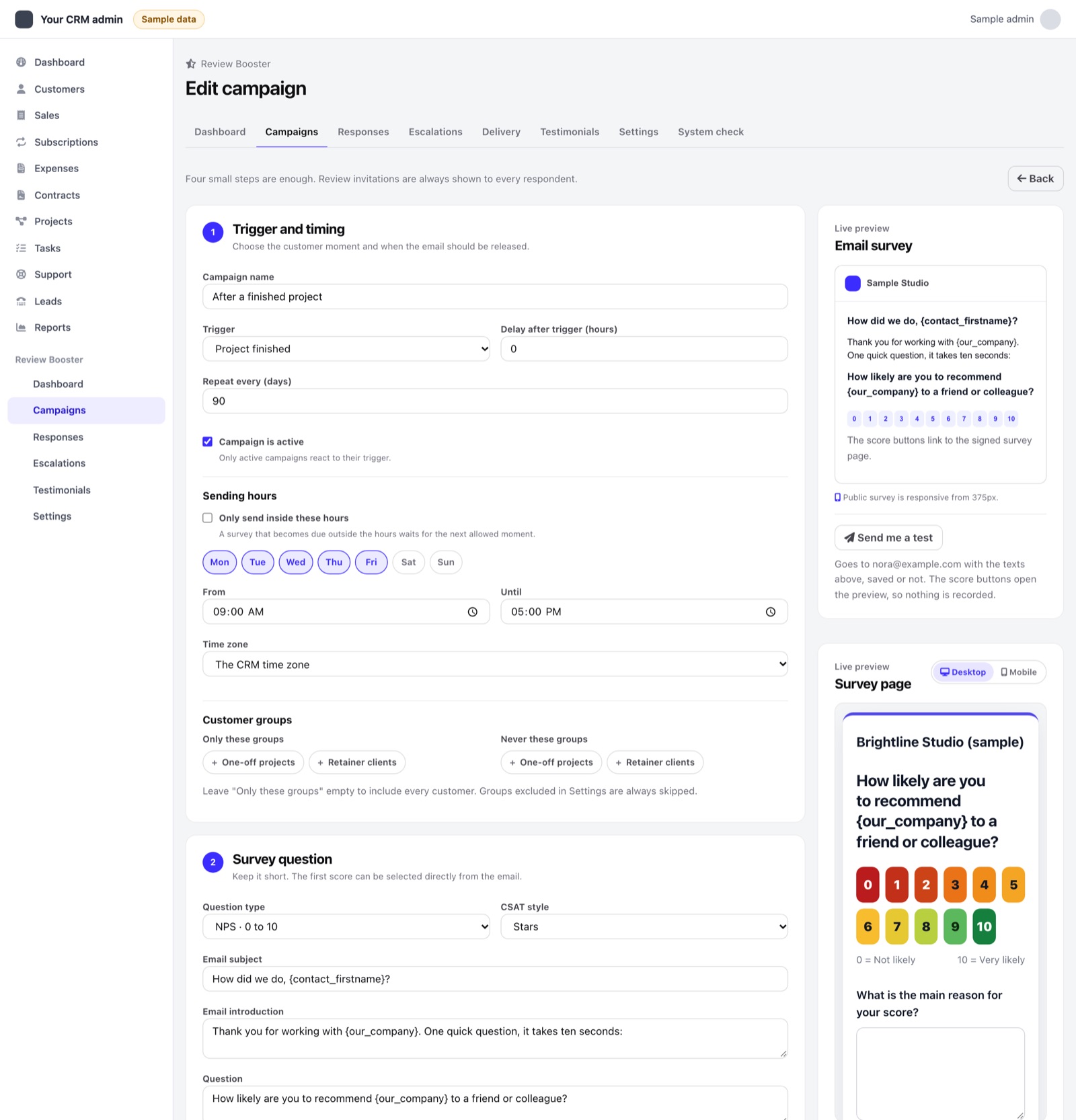
Open a campaign in Campaigns. Every text the customer sees is a field there, with a live preview of the e-mail and the survey page beside it:
- E-mail subject and introduction, the question, and the labels at both ends of the scale.
- The reason question and its answer options, which feed What drives the score.
- The thank-you headline and text, the review invitation text, the text after a low score, and whether to show a contact person.
- Question type: NPS from 0 to 10 or CSAT from 1 to 5 in stars or smileys, and whether to ask for consent to quote the comment.
Placeholders such as {contact_firstname} and {our_company} are filled in for each customer. Use Send me a test to see the result in your own inbox before you switch the campaign on.
02Timing and who is asked
- Per campaign: trigger, delay after the event in hours, repeat every N days, sending days and hours with a time zone, and the customer groups to include or leave out.
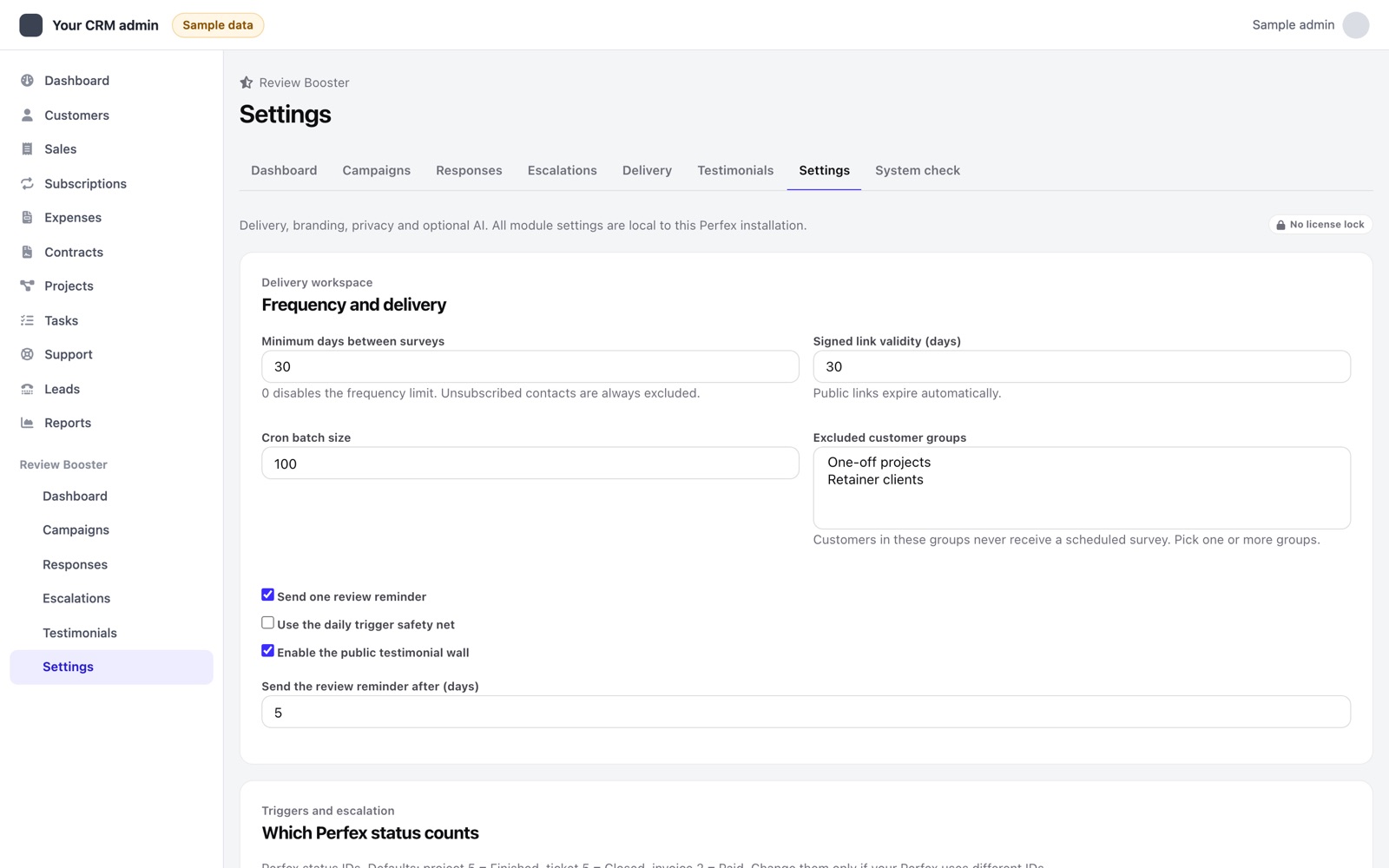
- For all campaigns in Settings: minimum days between two surveys to the same contact, how long a survey link stays valid, how many invitations one cron run sends, groups that are never surveyed, and one optional review reminder after a set number of days.
- Which Perfex status counts as a finished project, a closed ticket or a paid invoice, for installations with custom statuses.
03Your brand
In Settings set the sender name, a logo address and the brand colour. The invitation e-mail and the survey page use them, so customers see your company, not the module.
04Follow-up rules
Each campaign decides what a low score does: whether it opens a recovery case, its first priority and owner, a Perfex task or a ticket in a chosen department, a next-action deadline in hours, and whether the responsible person is notified. In Settings choose the manager who hears about new low scores. See Work a recovery case.
05Review sites and testimonials
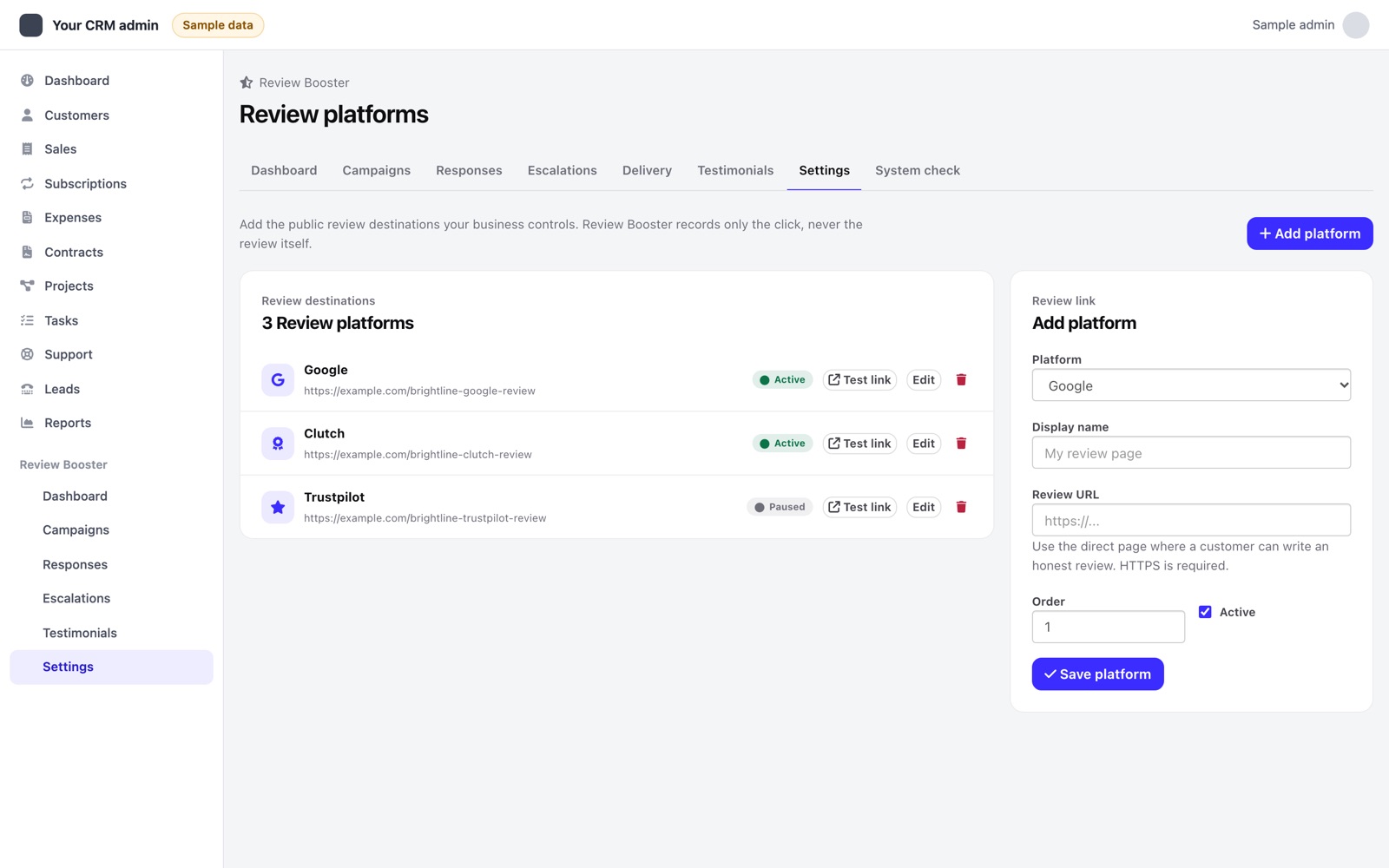
- Review Platforms: add your own public review links with a name and an order, and switch each one on or off. Every respondent sees the same links.
- Testimonial widget: choose layout, light or dark theme and the number of quotes, then copy the embed code. For each quote choose whether to show the author, the company and the score. The public testimonial page is a switch in Settings.
06Reports and access
- Monthly report e-mail: switch it on and pick the staff who receive it in Settings. Send it now sends last month's report to you.
- Staff access: the Review Booster permissions sit in Perfex's own role and staff permission screens. Staff with "view own" see only their own customers.
- Optional AI drafts: provider, model, tone and the monthly and daily call limits are settings. See Optional AI drafts.
07What needs a file edit
Two things are changed in files rather than on screen. Interface wording and translations live in modules/review_booster/language/english/review_booster_lang.php; to add a language, copy the english folder under the name of your Perfex language and translate the texts. Deeper styling lives in modules/review_booster/assets/css/review_booster.css. Keep a copy of both changes, because an update replaces the module folder.